 By Priya Kumari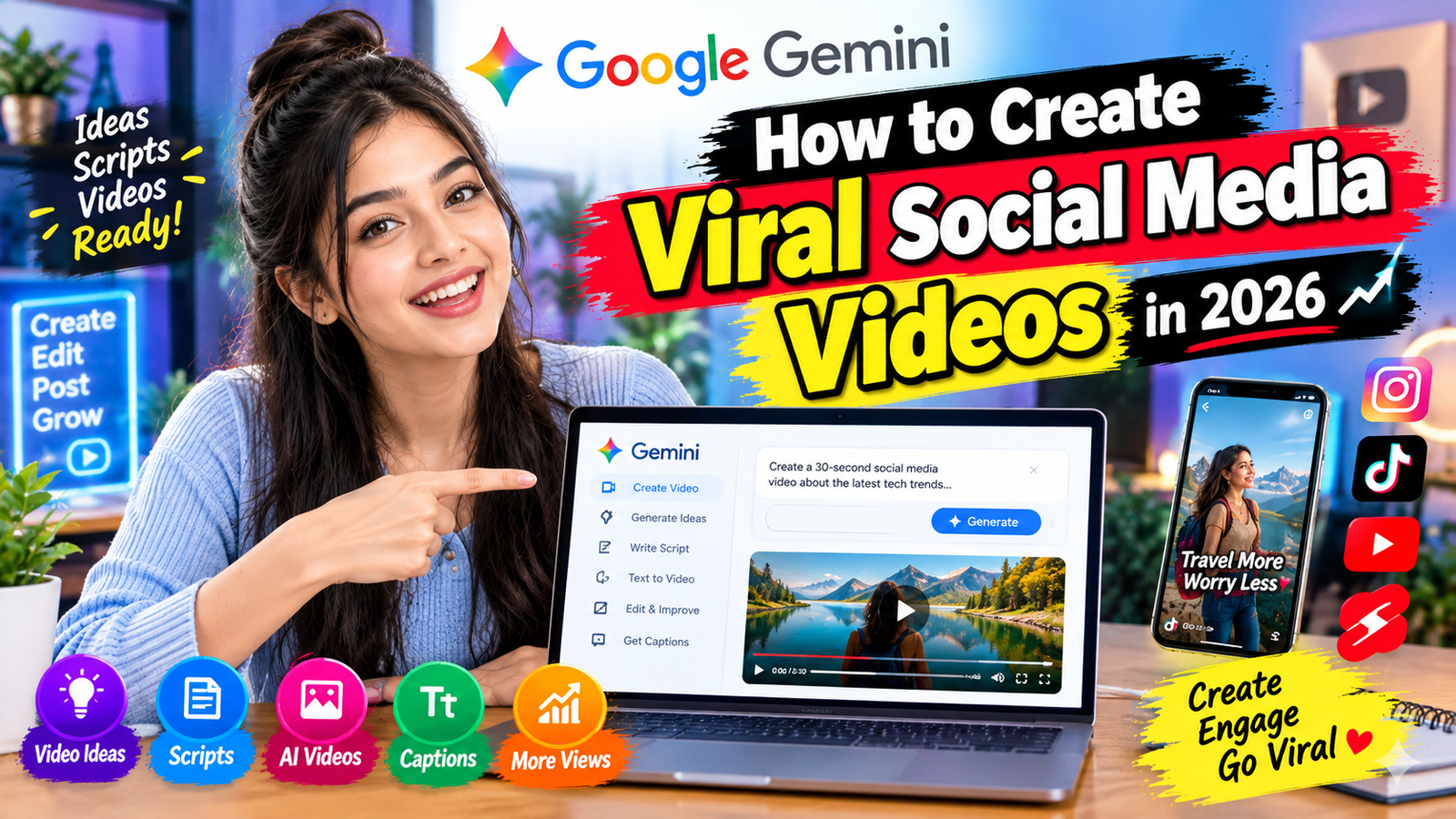
Creating social media videos consistently can be difficult. You need an idea, script, visuals, voiceover, editing, captions and a strong opening—all before you even publish the video.
Google Gemini can help simplify many of these steps. Gemini can brainstorm ideas, write scripts and improve prompts, while its current video-generation experience uses Gemini Omni. Google says Gemini Apps can generate videos from text and can also work with uploaded images or video references, with options for aspect-ratio control and multi-turn editing.
Google’s video-generation ecosystem also includes Veo 3.1, which Google describes as its leading video-generation model, with capabilities including audio, reference images, character consistency, scene extension and camera controls.
The important point is that AI does not guarantee that a video will go viral. However, it can make the content-creation process much faster and give creators more ideas to test.
What Is Google Gemini?
Google Gemini is Google’s AI assistant and generative AI platform. It can help users with tasks such as brainstorming, writing, research, image creation and video-related workflows.
For social media creators, Gemini can be useful at several stages:
- Finding video ideas
- Writing hooks
- Creating scripts
- Developing storytelling concepts
- Improving video prompts
- Generating captions
- Creating content calendars
- Repurposing existing content
- Brainstorming thumbnails and titles
- Improving existing video concepts
Google’s current Gemini video-generation documentation says users can generate videos through Gemini Apps and can also make edits using additional prompts.
How to Use Google Gemini to Create Social Media Videos
A simple workflow is:
Idea → Hook → Script → Visual Prompt → Video → Edit → Caption → Publish → Analyze
Let’s look at each step.
1. Ask Gemini for Viral Video Ideas
The first step is finding an interesting topic.
Instead of asking:
“Give me video ideas.”
Give Gemini more information about your audience and niche.
Example prompt
Give me 20 short-form social media video ideas for a technology page.

My audience is interested in:
AI tools, Android tricks, hidden features, useful apps and technology tips.

For each idea provide:
1. A strong opening hook
2. The main topic
3. What viewers will learn
4. A suggested ending
5. A short CTA

Make the ideas suitable for Instagram Reels, YouTube Shorts and TikTok.
This can give you multiple concepts to test instead of depending on a single idea.
2. Create a Strong Hook
The first few seconds of a short video are extremely important.
Your opening should quickly tell viewers why they should continue watching.
For example:
Weak
“Today I’m going to show you a useful Android trick.”
Stronger
“Your Android phone can do this—and most people don’t know it.”
Other hook formats include:
- “You probably didn’t know this…”
- “Stop doing this on your phone.”
- “Here’s a hidden feature you should try.”
- “I tested this AI tool so you don’t have to.”
- “This trick takes only 10 seconds.”
- “Before you buy another app, try this.”
Gemini prompt
Write 15 short hooks for a 30-second Instagram Reel about a hidden Android feature.

Make each hook:
- under 12 words
- curiosity-driven
- natural
- easy to understand
- suitable for spoken Hindi-English
3. Generate a Complete Video Script
Once you have an idea, ask Gemini to turn it into a script.
A simple short-video structure is:
Hook → Problem → Solution → Demonstration → Result → CTA
Example
Hook:
“Did you know your Android phone has this hidden feature?”
Problem:
“Most people still use the old method.”
Solution:
“Open Settings, search for this option and enable it.”
Demonstration:
“Now try it on your phone.”
Result:
“You can complete the task much faster.”
CTA:
“Save this Reel so you can try it later.”
Gemini can create different versions of the same script for Instagram Reels, YouTube Shorts and other short-form platforms.
4. Use Gemini to Write Better Video Prompts
If you’re generating AI video, the prompt matters.
Google’s Veo prompting guidance recommends describing elements such as camera framing and movement, visual style, lighting, characters, location, action and dialogue. (Google DeepMind)
For example, instead of:
“Create a woman using a smartphone.”
Try:
Create a realistic vertical social-media video of a young adult woman
standing in a modern room and demonstrating a smartphone trick.

Medium close-up shot.
She holds the phone toward the camera.
The camera slowly moves closer to the phone.
Bright natural window lighting.
Modern technology-creator aesthetic.
Natural facial expressions and realistic hand movements.

She says:
"Most people don't know this hidden phone trick."

Add subtle room ambience and clean, natural dialogue.
The second prompt gives the video model considerably more information about what should happen.
5. Create Videos From Images
Gemini’s current video workflow can also use images as references. Google says users can upload up to five images and one video when creating a video in Gemini Apps.
This can be useful when you want consistency.
For example, you could provide:
- A character reference
- A product photo
- A location image
- A logo
- A visual style reference
Then ask Gemini to build a video around those references.
6. Create Consistent Characters
Character consistency can be difficult with AI-generated videos.
Google says Veo 3.1 supports reference images for characters, scenes and objects, helping creators maintain consistency across generated videos.
For example:
Use the uploaded character reference as the main character.

Keep the same:
- hairstyle
- clothing
- facial appearance
- approximate age
- overall visual style

Create a vertical social-media scene where she demonstrates
a new AI application in a modern home office.
This approach can be particularly useful for creators who want a recurring AI presenter.
7. Add Dialogue and Sound
A video becomes more engaging when visuals and audio work together.
Google says Veo 3 can generate audio including dialogue, sound effects and ambient noise.
For example:
A creator enters a modern technology studio and sits at a desk.

Camera: medium shot, slow push-in.
Lighting: soft cinematic lighting.
Style: realistic social-media commercial.

Dialogue:
"Here's an AI tool that can save you hours every week."

Audio:
Natural room ambience, subtle keyboard sounds,
clear conversational voice and a light modern background beat.
Google’s prompting guidance specifically recommends describing desired audio alongside visual elements.
8. Create Instagram Reels With Gemini
Instagram Reels generally work well with short, visually clear concepts.
You can ask Gemini to create a complete Reel package.
Prompt
Create a complete Instagram Reel concept about
"5 AI tools that can save creators time."

Give me:
- 3 viral-style hooks
- a 30-second script
- scene-by-scene visual directions
- AI video prompts
- on-screen text
- caption
- CTA
- 10 relevant hashtags

Keep the language simple and conversational.
You can then generate individual scenes instead of trying to create an entire complicated story in one generation.
9. Create YouTube Shorts
YouTube Shorts can use a similar structure but may focus more heavily on searchable topics.
Examples:
- AI tutorials
- Android tricks
- Hidden Google features
- Online tools
- Productivity tips
- Interesting facts
- How-to videos
Example Gemini prompt
Create a 45-second YouTube Short about
"3 Google Gemini tricks most people don't use."

Give me:
1. A powerful opening
2. Three tips
3. Short explanations
4. Suggested visuals
5. On-screen text
6. Ending CTA
7. SEO-friendly title
8. Description
10. Create TikTok-Style Videos
For short-form content, you can experiment with formats such as:
Tutorial
“Here’s how to do this in 20 seconds.”
Experiment
“I asked AI to do this—and here’s what happened.”
Transformation
“Watch this ordinary photo become a cinematic video.”
List
“Three AI tools you should know.”
Story
“I tried creating an entire video using AI.”
Reaction
“I didn’t expect this AI result.”
The key is to make the concept easy to understand quickly.
11. Use Gemini to Create Multiple Versions
One useful AI workflow is to create variations.
For example, ask Gemini:
Take this video script and create 5 different versions.

Version 1: curiosity hook
Version 2: surprising hook
Version 3: question hook
Version 4: problem/solution hook
Version 5: storytelling hook

Keep the main information unchanged.
Now you can test different openings without rewriting the entire video.
12. Create Social Media Captions
After creating your video, Gemini can help write captions.
Prompt
Write 5 Instagram captions for this video.

Topic: Google Gemini AI video creation.

Requirements:
- conversational
- short
- curiosity-driven
- include a natural CTA
- don't make unrealistic claims
You can also ask for separate captions for Instagram, YouTube and Facebook.
13. Create a 30-Day Video Content Calendar
Consistency is often more useful than randomly creating videos.
Ask Gemini:
Create a 30-day social media video calendar for my technology page.

Topics:
AI tools
Android tricks
Google Gemini
AI video generation
Useful websites
PC tips

For each day provide:
- topic
- hook
- video format
- 30-second content idea
- CTA
You can then turn each daily idea into a script and video prompt.
14. Create AI Video Ads
Gemini can also help you develop promotional video concepts.
For example, suppose you’re promoting a digital product.
You could ask:
Create a 20-second social media advertisement for my digital product.

Structure:
0-3 seconds: attention-grabbing hook
3-8 seconds: identify the problem
8-15 seconds: demonstrate the product
15-18 seconds: explain the benefit
18-20 seconds: CTA

Give me:
- voiceover
- scene descriptions
- AI video prompts
- on-screen text
- CTA
This gives you a production blueprint before generating the actual visuals.
15. Use Gemini for Video Editing Ideas
Gemini’s current video workflow supports multi-turn editing. Google says users can continue editing a generated video through additional prompts, including changes to objects, characters, camera angles and scenes.
For example:
Make the camera movement slower.

Keep the character and background unchanged.
Make the lighting slightly warmer.
Keep the dialogue exactly the same.
Or:
Remove the object on the table.
Keep everything else unchanged.
This can make the process more iterative instead of generating everything from scratch.
The Best Prompt Formula for AI Social Media Videos
A useful general structure is:
Subject + Action + Location + Camera + Lighting + Style + Audio + Dialogue + Aspect Ratio
Reusable template
Create a [type of video] featuring [subject].

Subject:
[Detailed character/product description]

Action:
[What happens]

Location:
[Where the scene takes place]

Camera:
[Shot type + camera movement]

Lighting:
[Lighting style]

Visual style:
[Realistic/cinematic/minimal/etc.]

Audio:
[Music/ambient sound/sound effects]

Dialogue:
"Exact dialogue"

Format:
Vertical social-media video, 9:16.
Google’s Veo guidance similarly recommends giving the model information about framing, movement, style, lighting, characters, location, action and dialogue.
10 Google Gemini Video Prompts You Can Try
Prompt 1 — AI Tutorial
Create a realistic vertical social-media tutorial video.

A young technology creator demonstrates an AI tool
on a smartphone in a modern home office.

Fast opening shot, close-up of the phone,
then medium shot of the creator.

Natural lighting, realistic movements,
clean modern creator aesthetic.

Dialogue:
"This AI trick can save you a lot of time."

Add subtle background ambience.
Prompt 2 — Cinematic Technology
Create a cinematic vertical video showing a smartphone
floating above a futuristic desk.

The camera slowly circles around the phone.
Blue and purple ambient lighting.
Realistic reflections and detailed materials.

Add subtle futuristic sound effects.
Prompt 3 — Product Promotion
Create a premium vertical product advertisement.

Show the product on a clean modern desk.
Start with a close-up.
Slowly reveal the entire product.
Use smooth camera movement and premium studio lighting.

Add subtle cinematic sound design.
Leave clear space for promotional text.
Prompt 4 — Storytelling
Create a short cinematic story about a creator
who discovers an AI tool that changes the way
they create content.

Show:
Discovery → Experiment → Result → Excitement.

Use realistic environments, natural expressions,
smooth camera movements and cinematic lighting.
Prompt 5 — Viral Transformation
Create a vertical social-media transformation video.

Start with a normal smartphone photo.
Transform the visual into a cinematic AI-generated scene.

Use a dramatic transition,
dynamic camera movement,
realistic lighting and engaging sound effects.

End with a clean reveal.
Important Tips for Better AI Videos
1. Don’t make every video complicated
A simple idea that is easy to understand can be more useful than an extremely complicated AI scene.
2. Keep the opening clear
Viewers should understand the topic quickly.
3. Use specific prompts
Describe what the camera, character and environment should do.
4. Generate scenes separately
For longer stories, creating multiple short scenes can make editing and consistency easier.
5. Add captions
Many social-media users watch videos without relying entirely on audio.
6. Experiment with different hooks
The same topic can be presented in several ways.
7. Review every AI-generated video
Look for:
- Strange hands
- Incorrect text
- Unnatural movement
- Audio problems
- Inconsistent characters
- Incorrect objects
- Unwanted visual elements
Can Google Gemini Guarantee a Viral Video?
No.
AI can help with ideas, scripts, prompts and production, but there is no guaranteed formula for making a video viral.
A video can perform differently depending on the audience, topic, timing, presentation, platform and many other factors.
Instead of asking Gemini:
“Make me a guaranteed viral video.”
Try:
“Create 10 different video concepts designed to maximize curiosity and viewer retention, then explain the reasoning behind each concept.”
This gives you multiple ideas to test.
Google Gemini Video Creation Workflow
You can build a repeatable workflow like this:
Step 1: Find a topic
↓
Step 2: Ask Gemini for hooks
↓
Step 3: Select a concept
↓
Step 4: Generate the script
↓
Step 5: Create the visual prompt
↓
Step 6: Generate the video
↓
Step 7: Edit the result
↓
Step 8: Add captions/music
↓
Step 9: Create the title and caption
↓
Step 10: Publish and analyze the results
Gemini can also be used to brainstorm and refine video prompts before generation.
Important Copyright and Safety Considerations
When creating AI videos, make sure you have permission to use uploaded images, videos, voices, logos or other copyrighted material.
Google specifically advises users to upload only images they have the right to use and warns against violating copyright or privacy rights. It also prohibits using generated videos to deceive, harass or harm others.
For commercial content, also check the applicable platform and AI-service terms before publishing.
Frequently Asked Questions
Can Gemini create videos?
Yes. Google’s current Gemini Apps documentation says video generation is available through Gemini Apps using Gemini Omni, subject to account, plan and availability requirements.
Can Gemini create Instagram Reels?
Gemini can generate video content that can be used as part of an Instagram Reel workflow. You can specify a vertical format and create scenes designed for short-form social media.
What is the current Google video model?
Google currently lists Veo 3.1 as its leading video-generation model, while Gemini Apps documentation describes its current video-generation experience as Gemini Omni.
Can Gemini generate video with audio?
Yes. Google’s documentation says Gemini can generate audio with videos, while Google’s Veo materials describe native dialogue, sound effects and ambient audio capabilities.
Can I use my own images?
Can Gemini edit an AI-generated video?
Yes. Google says generated videos can be edited using additional prompts, including changes to objects, characters, camera angles and scenes.
Final Thoughts
Google Gemini can significantly simplify the process of creating social media videos. Instead of starting with an empty editing timeline, you can use AI to move from idea → script → prompt → video → caption much faster.
The most effective workflow is not simply asking Gemini to “make a viral video.” Instead, create several concepts, develop strong hooks, write clear scripts, use detailed visual prompts and test different versions.
With tools such as Gemini and Google’s latest Veo technology, creators can experiment with tutorials, storytelling, product videos, educational content, AI demonstrations and many other formats.
[…] Short Video Google Gemini: How to Create Viral Social Media Videos in 2026 TikTok Video Stars Gone Viral in 2026: Creators, Trends & What Makes Videos Explode […]